vSphere VCSA 8.x 7.x: change DNS
vSphere VCSA 8.x 7.x: change DNS
I had to change the primary DNS in a vCenter appliance 8. First, I tried with the **VAMI **and had some issues (stupid ond one… when administrator@vsphere.local were requested, the user is suggested, in “light grey”, that means you have to retype it).

Sometimes a stupid bug is helpful: I checked the official KB to see what’s wrong and I’ve found this “additional info” :-\
Sometimes, the vCenter will not start after changing DNS servers and encounter an error message “No healthy upstream” when connecting with a browser.
Another error message may appear as: “Service did not set the task state"
I’m not in a very lucky period, so “sometimes the vcenter goes down” appears to be too dangerous,and I went for the CLI way
As an alternative to updating the DNS via the VAMI, it can be changed via command line.
Current Solution:
Changing the DNS server using DCLI:
Open a console to the VCSA, then login with root
If the appliance shell is active and default then continue to Step 4, otherwise move to Step 3
If bash shell is the active and default, access the appliance shell by entering: appliancesh
Once the appliance shell has been accessed, the following command can be run to display the current settings:
dcli com vmware appliance networking dns servers get
(Note: The administrator@vsphere.local credentials will be required when the command prompts for username and password)
In order to update the settings, the following command syntax can be utilized:
dcli com vmware appliance networking dns servers set –mode is_static –servers x.x.x.x –servers x.x.x.x
(Note: To enter multiple entries, the –server flag must be attached multiple times. Running the command again will just overwrite the existing values)
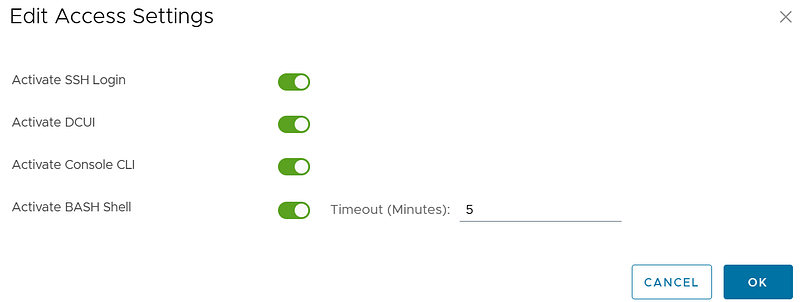
P.S.: in case you are logging in the VCSA via ssh using administrator@vsphere.local, open the VAMI first and enable the BASH Shell for 5 minutes
then login, shell, sudo, *shell *and you are ready to issue the commands needed (you will have to retype admin@… user&pass again)
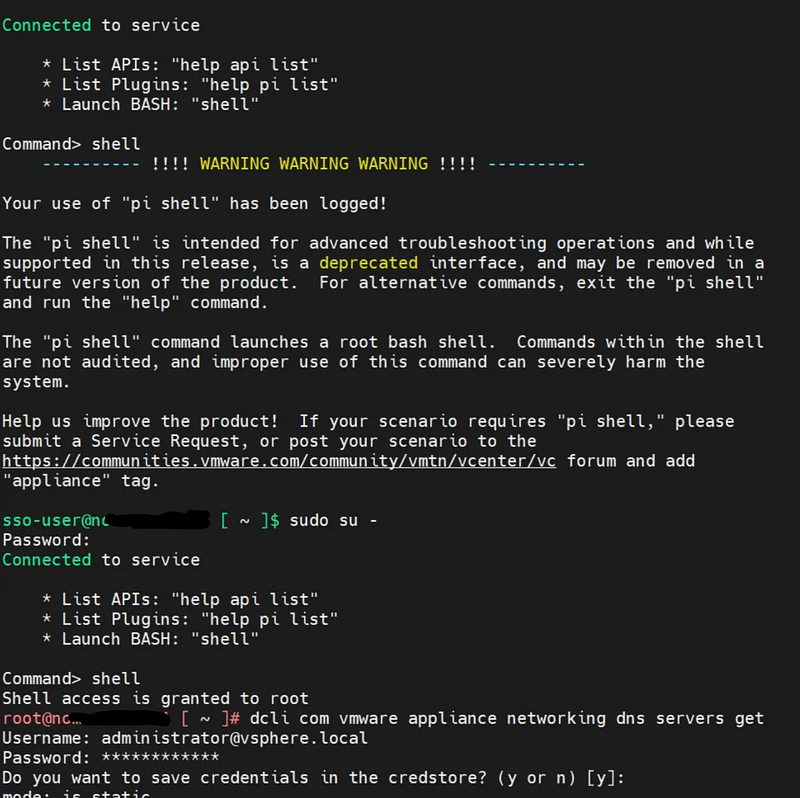
when finished, type *exit *100 times until you are logged off