Using Veeam Deployment Kit on a VBR server
Using Veeam Deployment Kit on a VBR server
Yes, I know it may sound weird, but I had found and solved this issue in my lab.

Short description:
- Black new NUC: ESXi, some windows VMs, one is a classic windows VBR server
- Grey old NUC: ProxMox, various VMs, one is a Veeam VBR Appliance
The Win VBR protects some VMs running in the grey NUC and viceversa. It makes sense: if a NUC crashes, I have a running VBR server with access to the lost VMs backups.
Yesterday, as described in my post, I connected a Veeam Infrastructure Appliance/Hardened repo to the Veeam VBR Appliance using the certificate based authentication. For some reason, I wanted to add to the VBR Appliance the WinVBR as a managed server. The neat way to do so is using the Veeam Deployment Kit. I tried to perform the automatic installation but I’ve got this error:
C:\temp\vdk>.\InstallDeploymentKit.bat
Removing existing Veeam Installer service
Installing Veeam Installer service
Failed to install Veeam Installer service (exit code 1619), see "C:\ProgramData\Veeam\Setup\VeeamInstallerSvc.install.log"
after some unsuccessfull investigation, I went for the manual installation, as *Readme *file states:
Manual installation steps

1. Copy the Veeam Deployment Kit folder for the appropriate OS to the target host.
2. Install both OpenSSL and the Veeam Installer service packages.
3. Copy certificates from the Certificates folder to the target host.
4. Install the certificates:
C:\Windows\Veeam\Backup\VeeamDeploymentSvc.exe --install-server-certificate /path/to/server-cert.pem --key /path/to/server-key.pem
C:\Windows\Veeam\Backup\VeeamDeploymentSvc.exe --install-certificate /path/to/client-cert.pem
5. Restart the service:
Restart the Veeam Installer service (VeeamDeploySvc)
the target windows machine is a VBR server and I checked out the installed app lists, finding out that OpenSSL and Veeam Installer service were already installed.
I jumped to step 4, and successfully installed the certificates
C:\temp\vdk>C:\Windows\Veeam\Backup\VeeamDeploymentSvc.exe --install-server-certificate c:\temp\vdk\server-cert.pem --key c:\temp\vdk\server-key.pem
Server certificate installed successfully

C:\temp\vdk>C:\Windows\Veeam\Backup\VeeamDeploymentSvc.exe --install-certificate c:\temp\vdk\client-cert.pem
Client certificate installed successfully
After that it was possible to add the Win VBR with no need to provide credentials
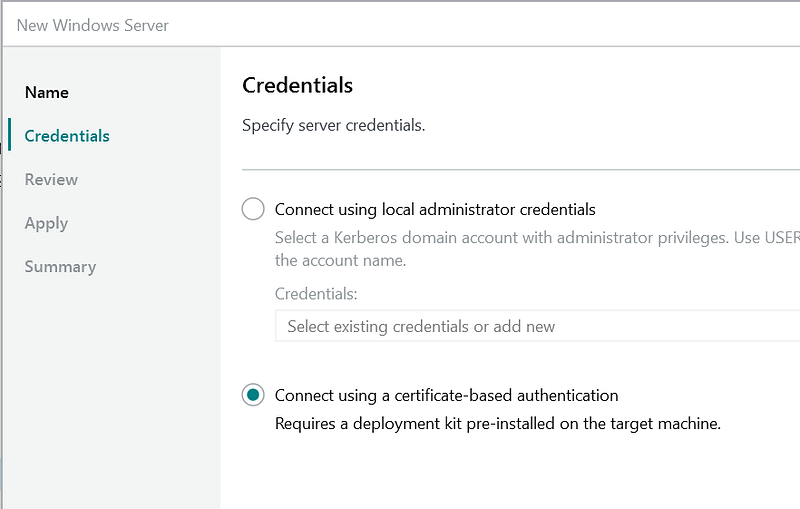
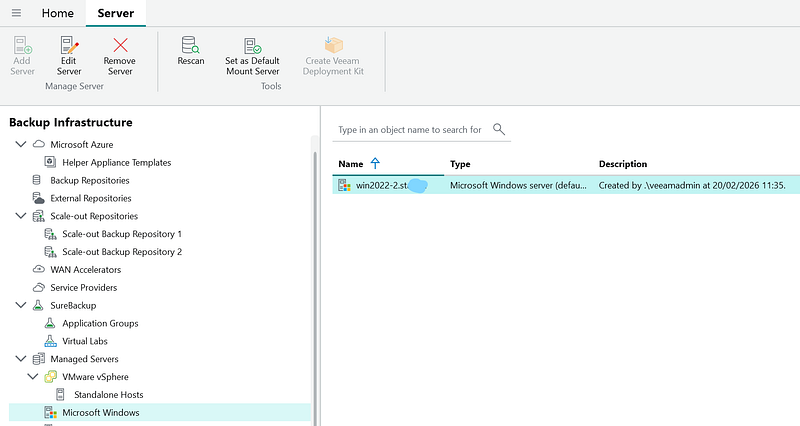
In brief: the Win VBR had already everything it needed but the certificates of the VBR Appliance :-)