How to remove a virtual disk from a Linux VM using LVM
How to remove a virtual disk from a Linux VM using LVM
Sometimes you might need to remove a physical disk from a Linux VM that uses LVM. The proper way to do this is to cleanly remove it from the OS and LVM before detaching it from the hypervisor. Here’s a quick rundown of the steps (path and device names are an example):
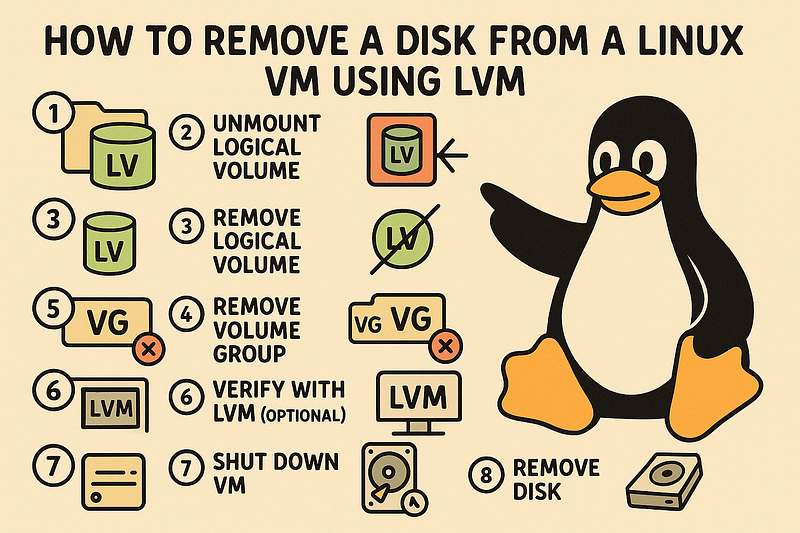
- Unmount the logical volume (if it’s mounted) Even if you think it’s not mounted, better to check and unmount just in case:
# sudo umount /dev/VolGroup01/LogVol02
- Deactivate the logical volume
# sudo lvchange -an /dev/VolGroup01/LogVol02
- Remove the logical volume
# sudo lvremove /dev/VolGroup01/LogVol02
- Remove the volume group (OPTIONAL: only if VolGroup01 had just that LV)
Check first:
# sudo vgdisplay VolGroup01
If the VG is empty
# sudo vgremove VolGroup01
- Remove the physical volume
# sudo pvremove /dev/sdb1
- Double-check it’s no longer used by LVM
# sudo pvs
# sudo vgs
# sudo lvs
- **Shut down the VM and remove the sdb disk from vSphere, **or other hypervisor
(If you really want to do it live (without powering off), you can try:)
# echo 1 | sudo tee /sys/block/sdX/device/delete